
Send "Reset Password" Email
If a user forgets their password, the platform provides a self-service password recovery feature; the user can click “Forgot Password” on the login screen, and the platform will send them a “Reset Password” email message. In addition, Organization administrators can manually send the “Reset Password” email message to a user.
Note: This feature is available for Organization Administrators.
To send the “Reset Password” email message to a user:
-
Log into the Zeta Login User Workspace.
-
Click your profile icon in the top-right corner of the screen. The Profile Info pop-up window is displayed.
-
Within the Profile Info pop-up window, click Zeta Login Administration. This will take you to the Zeta Login Administration environment, with the Users tab selected by default.
-
Search for the desired user (see View All Users for more information on the search options).
-
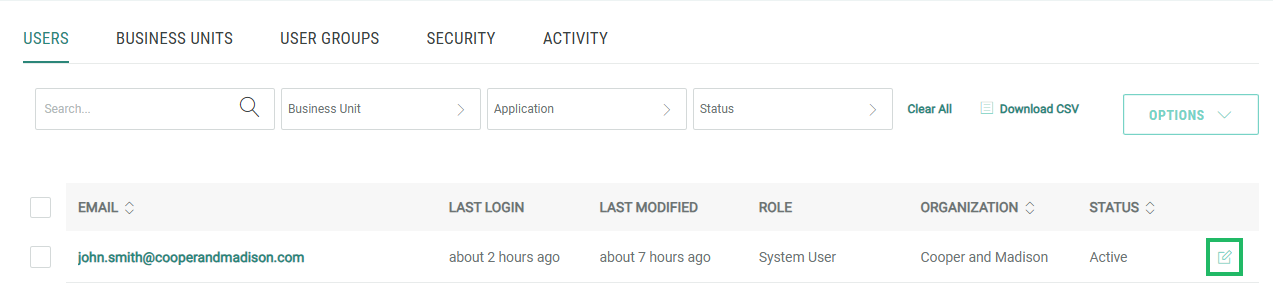
Next to the desired user, click the Edit icon. The User Workspace for that user is displayed, with the Profile tab selected by default.
-
Select Options > Send Reset Password Email.
